
Tech
Blooket Host Guide 2026: How to Play Using a Game ID and Join Code

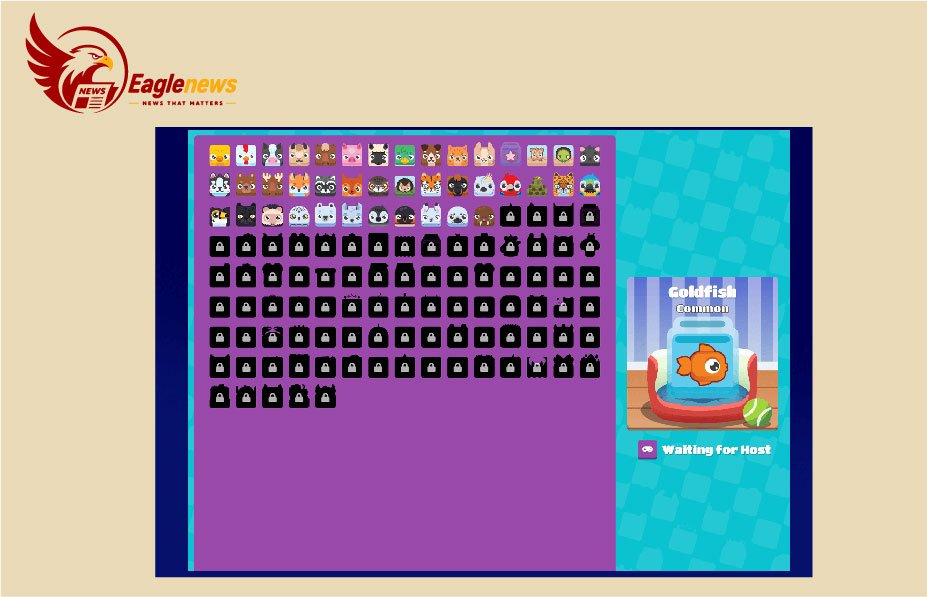
Blooket turns a regular question set into a live game, and a lot of the confusion around it comes down to two small things: who creates the game, and how everyone else gets in. If you’ve been searching for how to use a Blooket host setup, a Game ID, or a join code, the short version is that one person hosts, and everyone else joins with a code, a QR code, or a link.
This guide walks through hosting step by step, explains the Game ID and join code, covers the settings that matter, and troubleshoots the problems that most often stop a class from joining. It’s based on Blooket’s own help center, with details marked where sources disagree.
Quick Facts
| Item | What to know |
|---|---|
| Who hosts | A teacher or organizer signed in at blooket.com |
| Where players join | play.blooket.com |
| Ways to join | Game ID, QR code, or join link |
| Game ID vs join code | The same thing. “Join code” is just another name for it |
| Format | A numeric code. Many guides say seven digits, but sources don’t fully agree, so type whatever the host screen shows |
| Player accounts | Not required to join a live game, per Blooket’s help center |
| Host settings | Time or goal to end the game, late joining, banned Blooks, and more |
What You Need Before Hosting
- A Blooket account to host. Players generally don’t need one.
- A question set, either one you created or one you found in the library.
- A screen or a way to share the code, such as a projector, a classroom display, or a chat message.
- Devices for players, whether phones, tablets, Chromebooks, or computers.
How to Host a Live Game
- Sign in at blooket.com.
- Choose a question set and review it so you know it’s the right one.
- Select Host.
- Pick a live game mode. Each mode shows a description and player recommendations. Modes include options like Gold Quest and Tower Defense.
- Select Host again to open the settings for that mode.
- Adjust the settings (more on these below).
- Select Host Now.
- Share the Game ID, QR code, or join link with players, then press Start when everyone is in the lobby.
One note from Blooket: available modes may depend on your account, and some games support only solo or homework play, not live hosting.
The Host Settings Explained
| Setting | What it does |
|---|---|
| Time | Ends the game after a set amount of time |
| Goal | Ends the game when a player hits a score target, such as a gold amount |
| Allow late joining | Lets players join after the game has started |
| Banned Blooks | Prevents players from using characters you choose |
| Reset to defaults | Restores the original settings |
Different modes offer different extra options, so look through the list before you press Host Now.
How Players Join
Players have three options, and any of them works.
- Type the Game ID. Go to play.blooket.com, enter the code, and press the arrow.
- Scan the QR code with a phone or tablet camera.
- Open the join link if you’ve shared one.
After that, players enter or receive a name, choose a Blook (the character that represents them), and wait in the lobby for the host to press Start.
Make Names Useful
Blooket suggests asking students to use initials or first names, which makes the after-game reports easier to read. A rule like “first name and last initial” works well in most classrooms.
Check the Web Address
Joining happens on play.blooket.com, while hosting and set creation happen on the main Blooket site. If the code doesn’t work, the most common mistake is typing it into the wrong website or a look-alike page. Make sure the address is exactly right before you troubleshoot anything else.
Picking a Game Mode
Choose a mode based on your group and goal.
- Review and practice: pick a mode that keeps everyone answering questions.
- Competition: modes with score goals or time limits create a clear finish line.
- Large classes: read each mode’s player recommendations, since some work better for bigger groups.
Try one mode with a short set first so you know what to expect.
Troubleshooting
| Problem | Likely cause | Fix |
|---|---|---|
| The Game ID doesn’t work | A typo, an old code, or the game has ended | Re-type it carefully, or ask the host for the QR code or link |
| Players can’t enter after the game starts | Late joining is off | Turn on Allow Late Joining before hosting, or restart the game |
| The page won’t load | A browser extension or network block | Try without extensions, or ask the network administrator |
| Wrong site | Typed the code on blooket.com or a copy | Use play.blooket.com |
| The lobby is empty | Players are on the wrong code or the game was closed | Re-share the current code and confirm the room is open |
On school networks, one guide notes that Blooket needs access to a particular domain, firebaseio.com, to work. If the game won’t load on a school network, the right move is to ask your IT team to allow it, not to look for workarounds.
Running a Smooth Session
- Test your set before class so there are no typos in questions or answers.
- Display the QR code on a projector. It’s faster than typing.
- Explain the rules before you press Start: how long the game runs, what a good score looks like, and how nicknames should look.
- Keep the lobby open until everyone has joined, unless you plan to allow late arrivals.
- Review the results afterward. The report shows which questions gave students trouble.
Fair Play
Blooket’s own materials include a section on bots and fair play, and cheating tools and flooding programs go against the platform’s rules. They can also compromise your device or account, so stay away from them.
If a game gets disrupted by fake names or interference, end it, set clearer name rules, restrict late joining, and start again with a fresh code. If it happens repeatedly, contact Blooket support through its help center.
Ready to Host
Hosting a Blooket game is a short sequence: pick a set, choose a live mode, adjust the settings, press Host Now, and share the Game ID, QR code, or link. Players go to play.blooket.com, enter the code, pick a Blook, and wait for you to press Start.
Most problems come from a mistyped code, the wrong website, or a late joiner when late joining is off. Check those three and you’ll solve most of them in under a minute.


Connections Clues Today Forbes – How to Solve Today’s NYT Puzzle

Coomer . su: A Complete Guide to Its Purpose, Risks, and Alternatives

Www. EuroGamersOnline .com: Discover the Best Gaming Guides and Gadgets

Do The Driving Modes in Cadillac Lyriq Offer Different Ranges or Battery Usages?

Tara Renee Schemansky: The Private Life of an American Lawyer and Hollywood Wife

Benzynews Com: Your Complete Guide to a Multi-Topic Online News and Information Platform
-
 Tech4 months ago
Do The Driving Modes in Cadillac Lyriq Offer Different Ranges or Battery Usages?
-
 Celebrity4 months ago
Tara Renee Schemansky: The Private Life of an American Lawyer and Hollywood Wife
-
 Tech4 months ago
Benzynews Com: Your Complete Guide to a Multi-Topic Online News and Information Platform
-

 Celebrity4 months ago
Kent Valandra: The Private Half-Brother of Game Show Legend Bob Barker
-

 Celebrity4 months ago
Eduardo Hagn: The Rise of Arsenal’s Most Influential Independent Football Analyst
-

 Tech3 months ago
Droven.io USA: A Vendor-Neutral Guide to AI and Automation Tools
-

 Celebrity4 months ago
A Moment Frozen in Time: Julia Martinez’s Quinceañera and the Fragility of Life
-

 Tech4 months ago
Crew CloudySocial: The Complete Guide to Smarter Social Media Teamwork and Collaboration